How to make a video from a WordPress post, without leaving WordPress
Turn any WordPress post into a short narrated video from the block editor or the post list, save it to the Media Library and embed it in the post, with the Ojelio plugin.
Updated October 14, 2026 · 3 minutes to read

If your articles live in WordPress, the shortest way to a video is not to copy them anywhere. The Ojelio plugin makes a short narrated, captioned video from a post where you write it, saves the MP4 to your Media Library and puts it in the post when you ask.
What you need
- A self-hosted WordPress site (WordPress 6.6 or later, PHP 7.4 or later) where you can add plugins.
- An Ojelio account. The plugin works on every plan, the free one included; the videos it makes use your workspace's credits, like any other.
1. Install the plugin
- In WordPress, go to Plugins → Add New Plugin and search for Ojelio.
- Press Install Now, then Activate.
The plugin is free in the WordPress plugin directory, and new versions show up in WordPress's own Updates, like any other plugin.
2. Connect your site
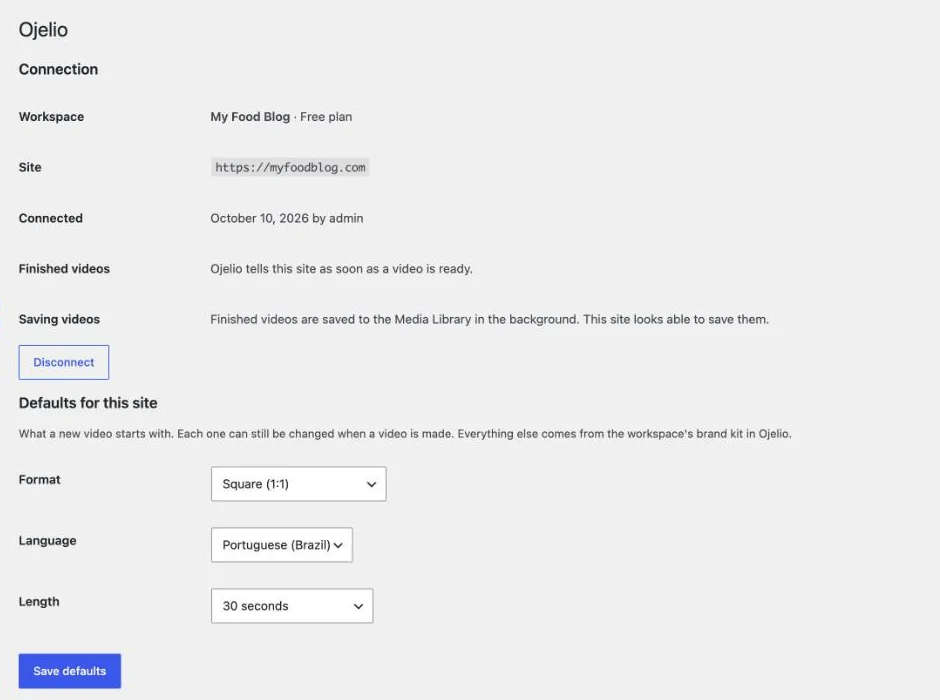
- In WordPress, open Settings → Ojelio and press Connect to Ojelio.
- Ojelio opens and asks you to approve the site for your workspace. Approve it.
There is no key to copy. Only administrators can connect a site, in WordPress and in Ojelio, and you can disconnect it at any time from either side.
Once connected, the same page shows the workspace and sets the defaults for this site: the format, language and length a new video starts with.
3. Make a video from a post
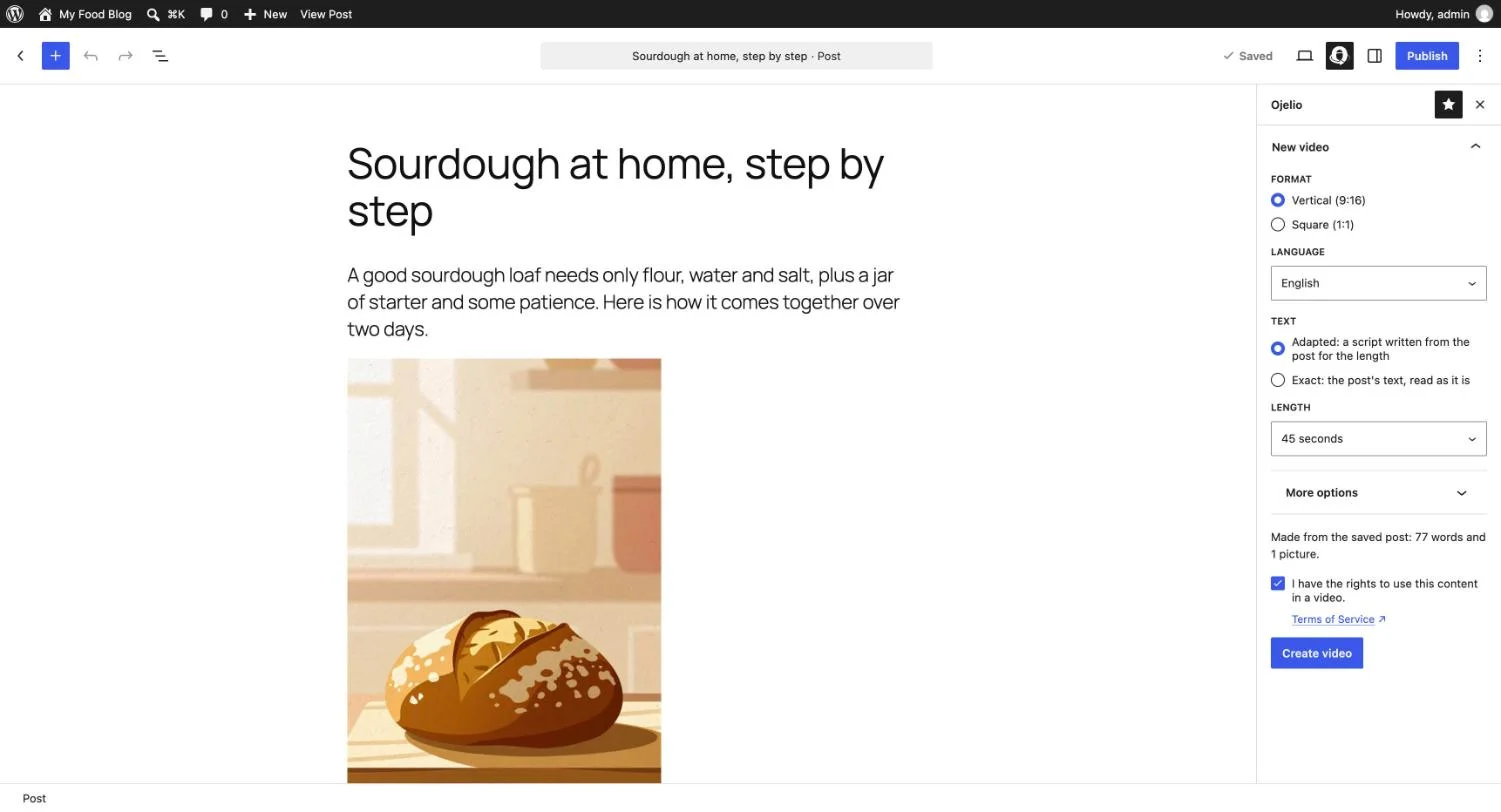
In the block editor, open the Ojelio panel in the post's sidebar and press Create video. The post is saved first, and its text and pictures are sent in order. You can choose:
- Format: vertical (9:16) for Shorts, TikTok and Reels, or square (1:1) for feeds.
- Text: Adapted writes a short script for the length you choose; Exact reads the post word for word.
- Length, language, narrator, style and music, with your brand kit's choices filled in.
- Review the script before the video is made, if you want to read and edit it in Ojelio first.
You can also start a video from the Posts list, without opening the editor.
4. Put it in the post
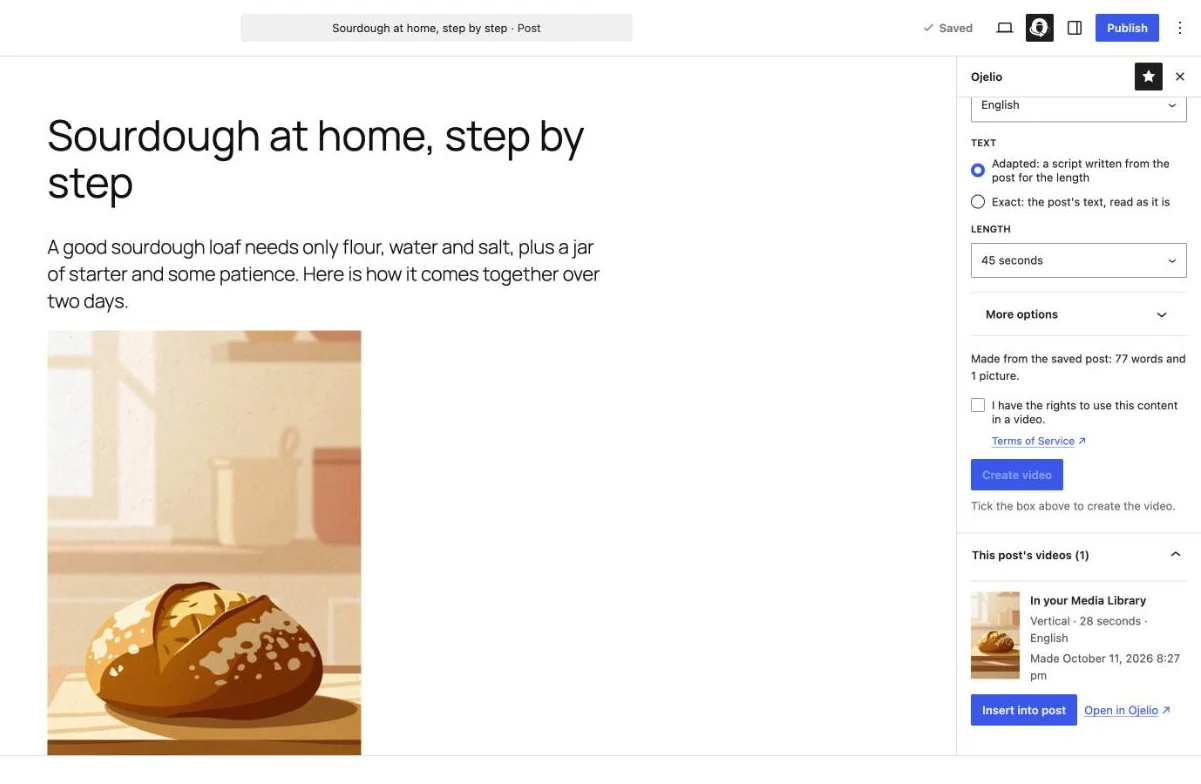
When the video is ready, the plugin saves the MP4 to your Media Library by itself. Back in the editor, the Ojelio panel shows it: press Insert into post to add it where you want it. The same file is ready to upload to YouTube Shorts, TikTok or Instagram.
Good to know
- Your brand kit applies. Colors, fonts, captions, voice and music set once in Ojelio are used for every video the site makes.
- Each site sees its own videos. A site connected to a workspace sees only the videos it made, and the workspace sees them all.
- Free plan videos are up to 60 seconds and carry "Made with Ojelio"; paid plans remove it or put your logo there, and go up to 90 seconds.
- Use posts you have the rights to. The plugin asks you to confirm it before each video.