How to turn your articles into YouTube Shorts, TikToks and Reels
One vertical video can go to YouTube Shorts, TikTok and Instagram Reels. The size, length and safe area that work on all three, and how to make that video from an article you already wrote.
Updated October 12, 2026 · 4 minutes to read

YouTube Shorts, TikTok and Instagram Reels look different, but they want the same thing: a vertical video, under a minute or so, that makes sense with the sound off. Make it once, well, and the same file can go to all three. This guide covers the format they share, how to fit an article into it, and how to post it so people find their way back to the article.
One file for all three
All three play full screen on a phone, so the shape that fills it is the one to use:
- Vertical, 9:16. A square or horizontal video plays with bars around it, or gets cropped.
- 1080 × 1920 pixels. Sharp on any phone; bigger files take longer to upload and look the same.
- MP4, with H.264 video and AAC sound. Every platform takes it.
- 30 to 60 seconds for an article. YouTube counts a vertical video of up to 3 minutes as a Short, and TikTok and Reels allow longer still, but a short video is the one people watch to the end. One clear idea from the article fits in 45 seconds.
For feeds that show videos in the timeline rather than full screen, such as LinkedIn or Facebook, a square (1:1) version of the same video sits better.
Keep words in the safe area
Each app draws its own buttons and text over your video: the account name and the description along the bottom, the like, comment and share buttons down the right side, and sometimes a title at the top. Anything important you put there gets covered.
- Keep captions and on-screen words in the middle of the frame, a little above the lower third.
- Keep faces and key objects away from the right edge.
- Do not rely on the first or last half-second: the first frame is often a still while the video loads.
Make it work without sound
Many people scroll with the sound off, and decide in a second or two whether to stay.
- Captions on, following the voice word by word, so a muted viewer can still read the whole video.
- A hook in the first line: the question, the surprising fact or the result the article promises. Not "In this video…".
- A new picture every few seconds, so the eye has something to follow.
From article to vertical video
An article is too long to read out in a minute, so it has to be cut:
- Pick one idea. The article's main point, or one useful section.
- Write about 100 words for 45 seconds: the hook, two or three points, and one closing line that says where to read the rest.
- Give every sentence or two a picture that shows what is being said.
- Record the voice, time the captions to it, add quiet music, and export at 1080 × 1920.
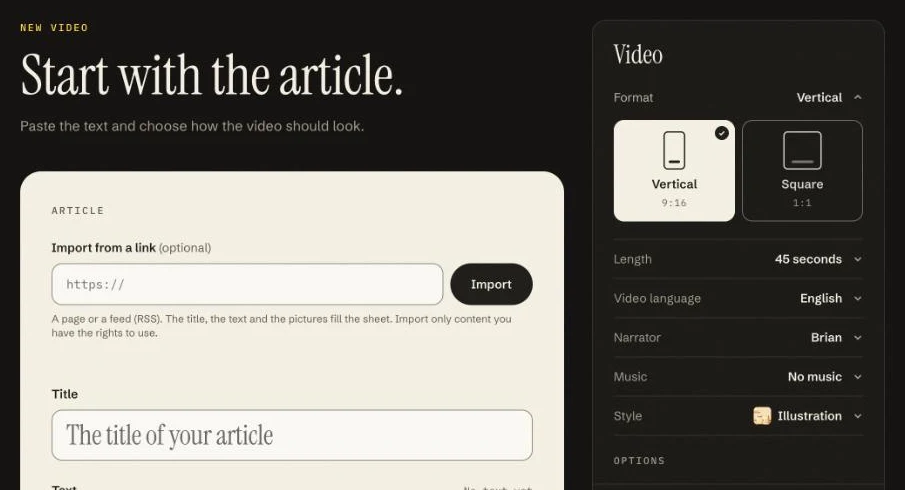
By hand this is an afternoon of writing, recording and editing. With Ojelio, you paste the article (or import it from its link, or send it from WordPress), choose Vertical and a length, and it writes the script, records the voice, draws each scene in your style, and adds captions and music. Its captions sit about a quarter of the way up the frame on vertical videos, clear of the apps' buttons and descriptions. You download one MP4 and post it everywhere. For the full walk-through, see How to turn a blog post into a short video.
Posting it on each platform
Upload the original MP4 to each app, not a video downloaded from another one: a file that carries another platform's watermark looks recycled, and Instagram has said it shows such videos to fewer people.
- YouTube Shorts: upload the vertical video from the YouTube app or YouTube Studio; a vertical video of up to 3 minutes becomes a Short by itself. Give it a plain title that says what it is about.
- TikTok: upload from the app or from TikTok on the web, write a one-line caption, and add two or three hashtags people actually search for.
- Instagram Reels: share it as a Reel, pick a cover frame that reads well in your profile's grid, and write a short caption.
Links in short-video captions are usually not clickable. Put the article's address in your profile or bio, and say "link in bio" at the end of the caption. A scheduler that posts to all three at once saves doing this three times.
Use only what you have the rights to
Make videos from your own articles, or from articles whose author has said yes. The pictures, the voice and the music in the video need to be ones you may publish too; Ojelio's are made for that.